Connection Status Guide
NoLimitConnect supports both direct peer-to-peer connections and relay-assisted connections.
This guide explains how connectivity works and how to interpret the status indicator bars shown at the top of the application.
📡 How NoLimitConnect Connectivity Works
NoLimitConnect operates in two modes depending on whether your device can accept incoming connections.
1. Direct Peer-to-Peer (P2P) Mode
If your device has an open port, other devices can connect to you directly.
Advantages:
- Fastest data transfer
- Lowest latency
- Ideal for hosting chat rooms, groups, or random connect
- No relay dependency
2. Relay-Assisted Mode
If your device cannot open a port, NoLimitConnect automatically uses a relay host.
Relays allow full communication even if:
- You are behind strict NAT
- Your ISP uses carrier-grade NAT
- Port forwarding is not possible
- Firewall rules block inbound traffic
Important: You can still communicate socially in relay mode,
but you cannot host unless your own port is open.
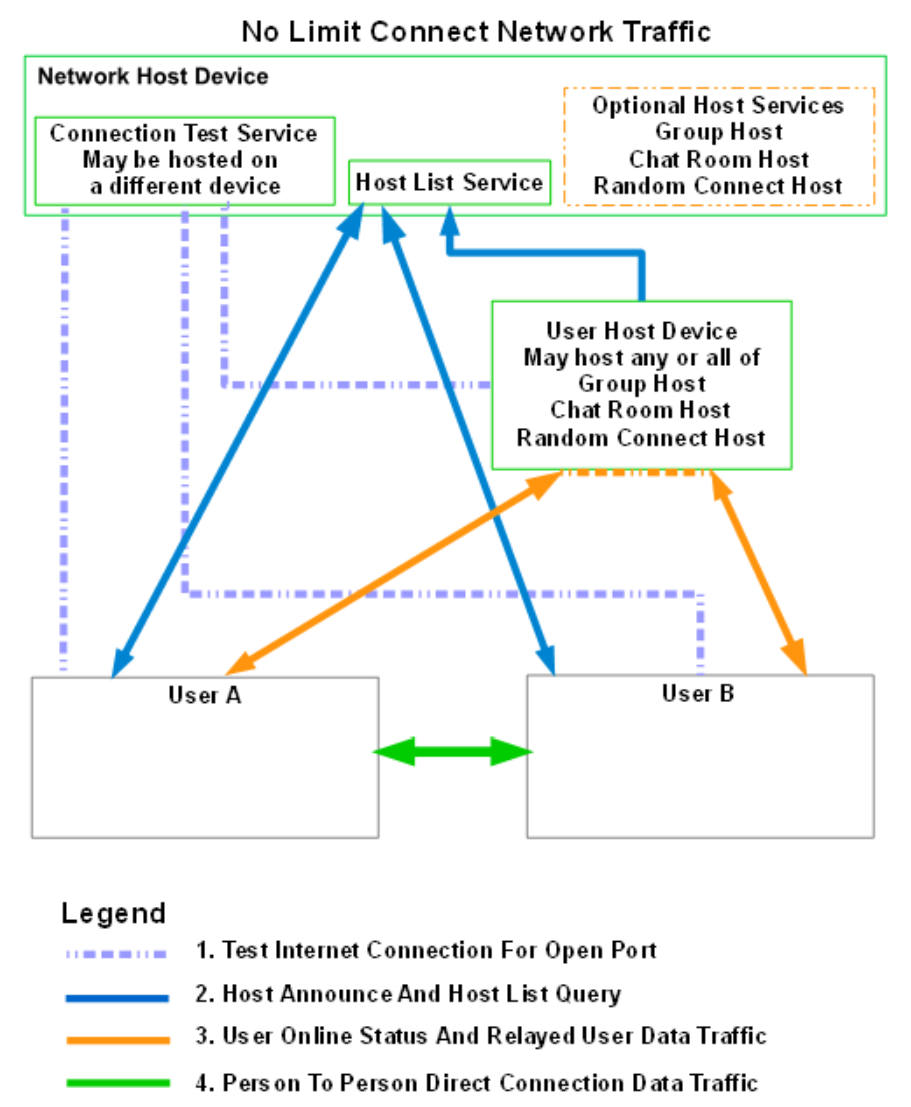
🖼 Network Traffic Diagram
NoLimitConnect distinguishes two kinds of "host": the small set of always-on Network Host infrastructure services (a directory plus a connection tester — see Network Hosts) and User Host Devices, which are just regular users who chose to host a Group, Chat Room, or Random Connect service from their own machine.
flowchart TB
    subgraph NH["Network Host Device"]
        direction LR
        CTS["Connection Test Service<br/><small>may be hosted on a different device</small>"]
        HLS["Host List Service"]
        OPT["Optional Host Services<br/><small>Group Host · Chat Room Host · Random Connect Host</small>"]
    end

    UHD["User Host Device<br/><small>may host any or all of:</small><br/>Group Host · Chat Room Host · Random Connect Host"]
    UA["User A"]
    UB["User B"]

    UA -.->|"1. Test open port"| CTS
    UB -.->|"1. Test open port"| CTS
    UHD -.->|"1. Test open port"| CTS

    UHD ==>|"2. Host announce"| HLS
    UA ==>|"2. Host list query"| HLS
    HLS ==>|"2. Host list query"| UB

    UA <-->|"3. Online status / relayed data"| UHD
    UHD <-->|"3. Online status / relayed data"| UB

    UA <==>|"4. Direct P2P connection"| UB

    classDef hostBox fill:#173620,stroke:#2ecc71,stroke-width:2px,color:#eafff1
    classDef optBox fill:#3a2a10,stroke:#ef8f1e,stroke-width:2px,stroke-dasharray:5 3,color:#ffe9c7
    classDef userBox fill:#22262e,stroke:#8a94a6,stroke-width:2px,color:#e8ecf1

    class CTS,HLS,UHD hostBox
    class OPT optBox
    class UA,UB userBox

    style NH fill:#0e2a13,stroke:#2ecc71,stroke-width:2px

    linkStyle 0 stroke:#9b8cff,stroke-width:1.5px,stroke-dasharray:4 3
    linkStyle 1 stroke:#9b8cff,stroke-width:1.5px,stroke-dasharray:4 3
    linkStyle 2 stroke:#9b8cff,stroke-width:1.5px,stroke-dasharray:4 3
    linkStyle 3 stroke:#2f7dd1,stroke-width:3px
    linkStyle 4 stroke:#2f7dd1,stroke-width:3px
    linkStyle 5 stroke:#2f7dd1,stroke-width:3px
    linkStyle 6 stroke:#ef8f1e,stroke-width:3px
    linkStyle 7 stroke:#ef8f1e,stroke-width:3px
    linkStyle 8 stroke:#2ecc71,stroke-width:4px
Legend:
- Dashed purple — Test internet connection for an open port, checked against the Connection Test Service.
- Blue — Host announce (a User Host Device registering itself with the Host List Service) and host list query (a client asking which hosts are available).
- Orange — User online status and relayed user data, forwarded through a User Host Device when a direct connection isn't available.
- Green — Direct, person-to-person connection data traffic once both peers can reach each other.
A static copy of the original diagram is still available at
assets/network/NoLimitConnectNetworkTraffic.png.
📶 Connection Status Indicator Bars
These icons indicate your current network test state and connectivity level.
| Icon | Meaning |
|---|---|
 |
Internet detected — beginning network check |
 |
Connection Test service available |
 |
Network Host service is available |
 |
Testing if you have an open port |
 |
Using Relay — port is not open, relay required |
 |
Direct Mode — port open, direct connections available |
 |
Hosting (Direct) — hosting services with open port |
📒 Beginner-Friendly Explanation
When you open NoLimitConnect, the app checks whether you can accept incoming connections.
- Yellow bars → The app is testing your network and NAT configuration
- Orange bars → You are online but in relay mode (your port isn’t open)
- Green bars → Your port is open, and you can host or connect directly
Even if your port cannot be opened, NoLimitConnect still works — the host handles relaying automatically.
📘 Technical Explanation (For Advanced Users)
NAT & Port Forwarding
Most users are behind:
- Home NAT
- ISP-level NAT
- Firewalls
These block unsolicited inbound connections.
NoLimitConnect therefore:
1. Determines your NAT type
2. Tests if inbound TCP traffic can reach you
3. Switches to relay mode if necessary
Direct Mode (Green)
Direct mode is active when:
- UPnP succeeds
- Manual port forwarding is configured
- NAT supports inbound mappings
- Firewalls are not blocking
Direct mode is required to host.
Relay Mode (Orange)
Relay mode activates when:
- Your port is closed
- You are behind symmetric NAT
- Your ISP uses CGNAT
- Firewalls block inbound requests
Traffic flows:
The host relays data for users without open ports.
Hosted Direct Mode
Hosting always requires:
- A stable public IP
- An open port
If your port is closed:
- You cannot host
- You can only join existing hosts
- Traffic to other users must pass through the host's relaying
🔧 Troubleshooting Port Status
If you want direct mode or hosting ability:
- Enable UPnP on your router
- Port-forward your assigned NoLimitConnect port
- Ensure firewalls allow incoming TCP on that port
- Avoid mobile hotspots — most block inbound traffic
- Consider Hide.me VPN (supports automatic port forwarding)